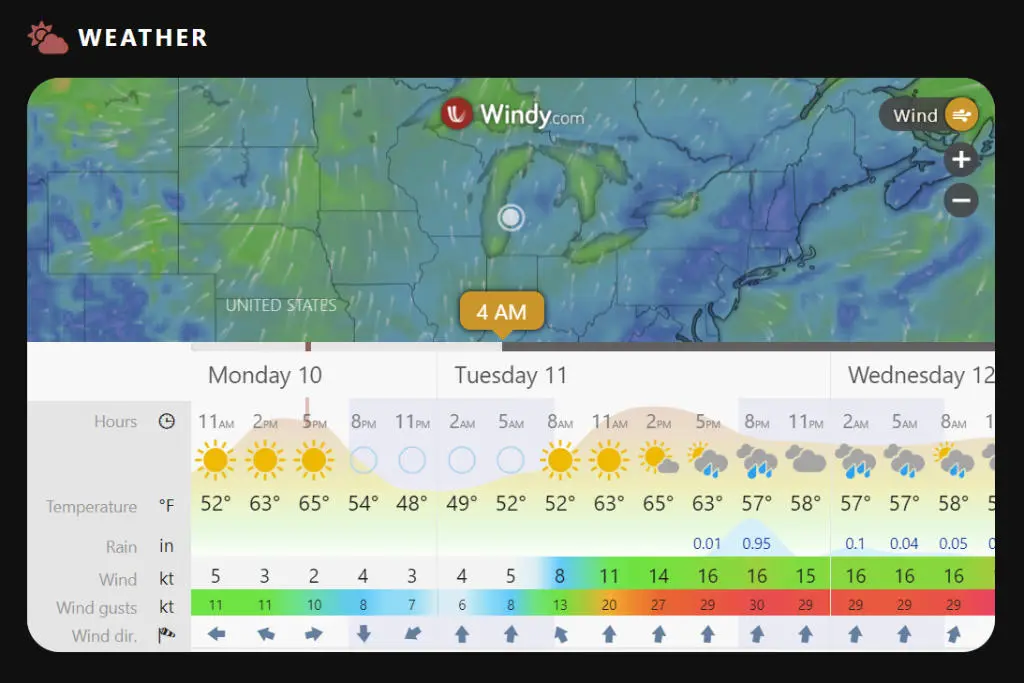
This guide assumes you are using or will use the Location field within the Listing Type you want to show the weather, and the Listing has a location added.
- Install and activate the Ventus – Weather Map Widget & Shortcode plugin.
- Edit the Listing Type where you want to show the weather.
- Single Page > Content & Tabs > Edit the profile tab where you want to show the weather.
- Add the ‘Shortcode’ block.
- Add the desired label (or no label) and icon (or no icon).
- In the ‘Content’ area, paste in the code shown below.
- Save changes.
[ventus width="100%" height="350px" radius="20px" lat="[[location.lat]]" lon="[[location.lng]]" zoom="4" scale="F" marker="true" forecast="true" time="12"]Once filled in, the ‘lat=’ and ‘lon=’ will pull from the Location field and display the weather for the entered location.
Please refer to the plugin’s home page for more information on the individual options for the shortcode. In this example, we’re using Fahrenheit (‘scale=”F”‘), but you might want to use Celcius.