By default, MyListing and Elementor don’t allow you to add SVGs, but you can get around that, and I’ll show you how.
This guide will teach you how to easily take advantage of the benefits of the SVG format (e.g., scalability, SEO friendliness, compact file size).
Upload SVGs Using Elementor
We’ll work with Elementor’s Icon widget for the steps below, but any Elementor widget with an Icon element (Icon, Icon Box, Icon List, etc.) will do.
- Edit any post or page with Elementor and drop in the Elementor Icon widget
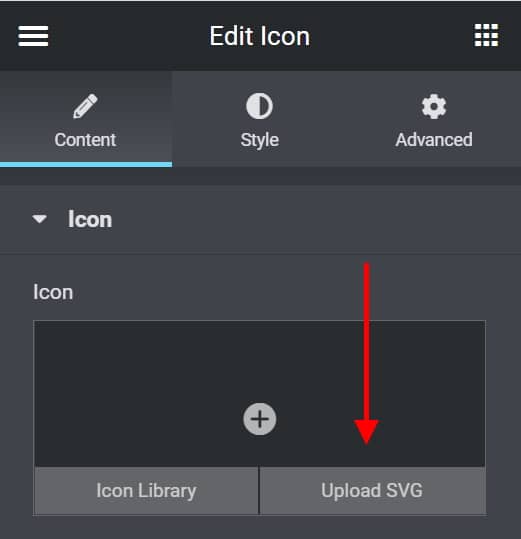
- Edit the Icon widget
- Hover over the Icon image area and choose Upload SVG
- Enable Unfiltered File Uploads
- Browse to the location of your SVG and select it
- Click Insert Media
That’s all there is to it! You can close your page without saving your changes, and your SVG will be in your WordPress Media Library.
Add SVGs to MyListing Taxonomies
For the steps below, I’ll show you how to add SVGs to the Region taxonomies, for example.
- WordPress Dashboard > Listings > Regions
- Edit any of your Regions
- Term Options > Icon Option > Upload Image
- Click Add Image
- Click on the desired SVG from your media library and click Select
- Save changes
The steps above can add SVGs to any MyListing taxonomy, such as Categories, Regions, Tags, Custom Taxonomies, etc.
Adjust the Color of Your SVGs
Before SVGs Have Been Uploaded
- Edit the SVG file using your preferred text editor application. (Note: I recommend Visual Studio Code (Free) for editing a wide range of file types.)
- Locate the svg fill=#xxxx value
- Adjust the HEX color code as desired
- Save changes
After SVGs Have Already Been Uploaded
- Using an FTP application like FileZilla or any WordPress File Manager plugin, browse to the location where you uploaded your SVGs (ex., /wp-content/uploads/)
- Edit the SVG file using your preferred text-editor application
- Find the svg fill=”#xxxx” value
- Adjust the HEX color code as desired
- Save changes
Video Tutorial
