Main Navigation Menu
The menu that’s targeted with this snippet is the default MyListing user menu that’s displayed in the navigation area, as you typically see on any WordPress website, rather than the dashboard menu that has all of the WooCommerce endpoints (Listings, Promotions, etc.).
By default, both the menu icons and the menu text are black. This snippet differentiates these two elements on hover.
.i-dropdown li a:hover i {
    color: red;
}
MyListing Dashboard Menu
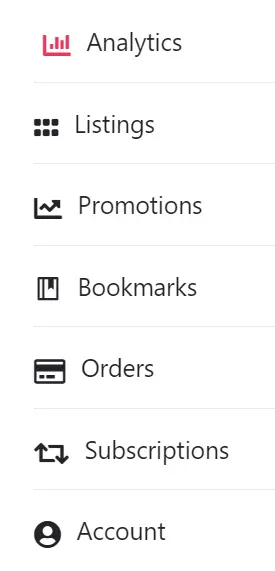
The menu that’s targeted with this snippet is the MyListing dashboard menu that has all of the WooCommerce endpoints (Listings, Promotions, etc.), rather than the default MyListing user menu that’s displayed in the navigation area, as you typically see on any WordPress website,
By default, both the menu icons and the menu text are black. This snippet differentiates these two elements on hover.
.woocommerce-MyAccount-navigation ul li a:hover i {
    color: red;
}